
Cricut Maker 5 review: the pinnacle of cutting machines now delivers more right out of the box
I am a crafty girl at heart — and with that comes a slew of half-baked ideas, a pile of scraps and unfinished projects... but I think I've met my match.
Last year, I had the opportunity to review the Cricut Maker 4, which was my first entry into the die-cutting cult. I had seen Cricut-made projects pop up on my socials, across a million Etsy sellers and in real life, so I knew what the machines could do. For me, it was an investment I had been debating, as I didn't know how much use I'd get out of a Cricut.
However, after using the Maker 4 for a few months, I was utterly impressed. Not only did I continue to use it near daily, but I was always thinking of potential projects and became a regular at my local craft store. Then came the opportunity to try the Cricut Joy 2, which also impressed me tenfold.
Better yet, in March this year, Cricut introduced material and tool bundles alongside the Joy 2 and Explore 5 machines. This meant new users could purchase the machine and all the tools, vinyl, cardstock and more at once, without needing to spend extra to get started.
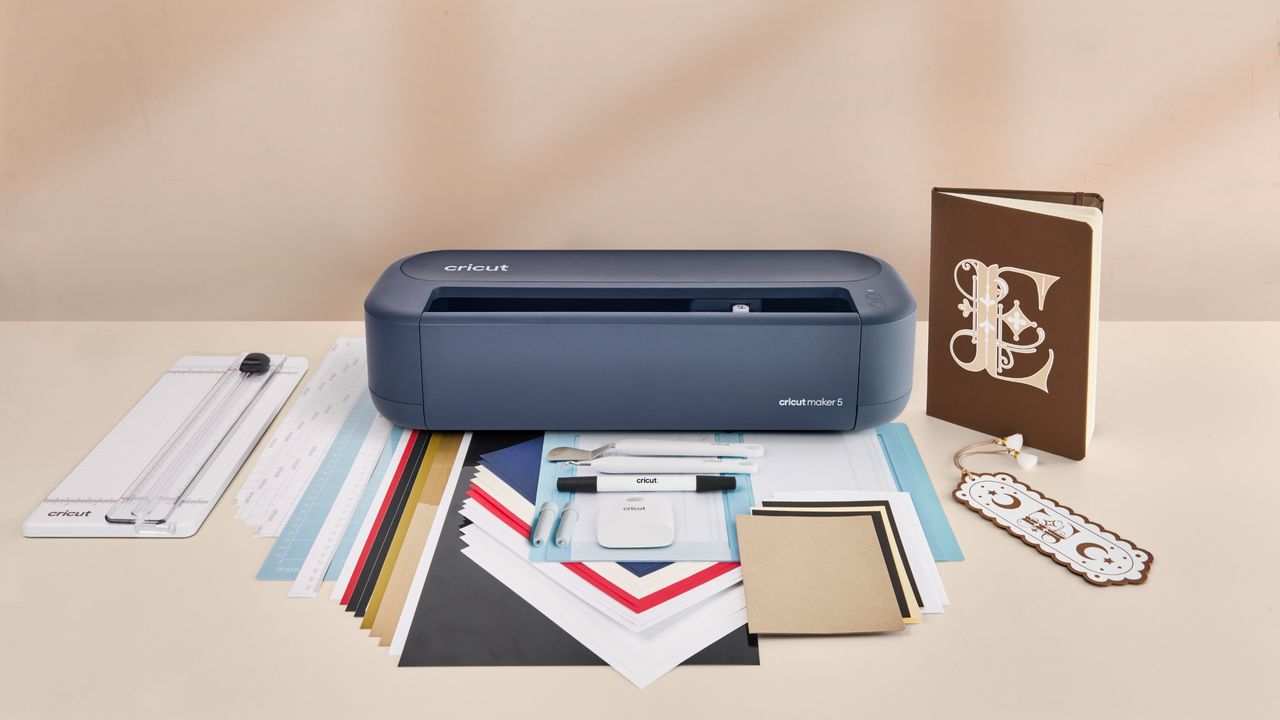
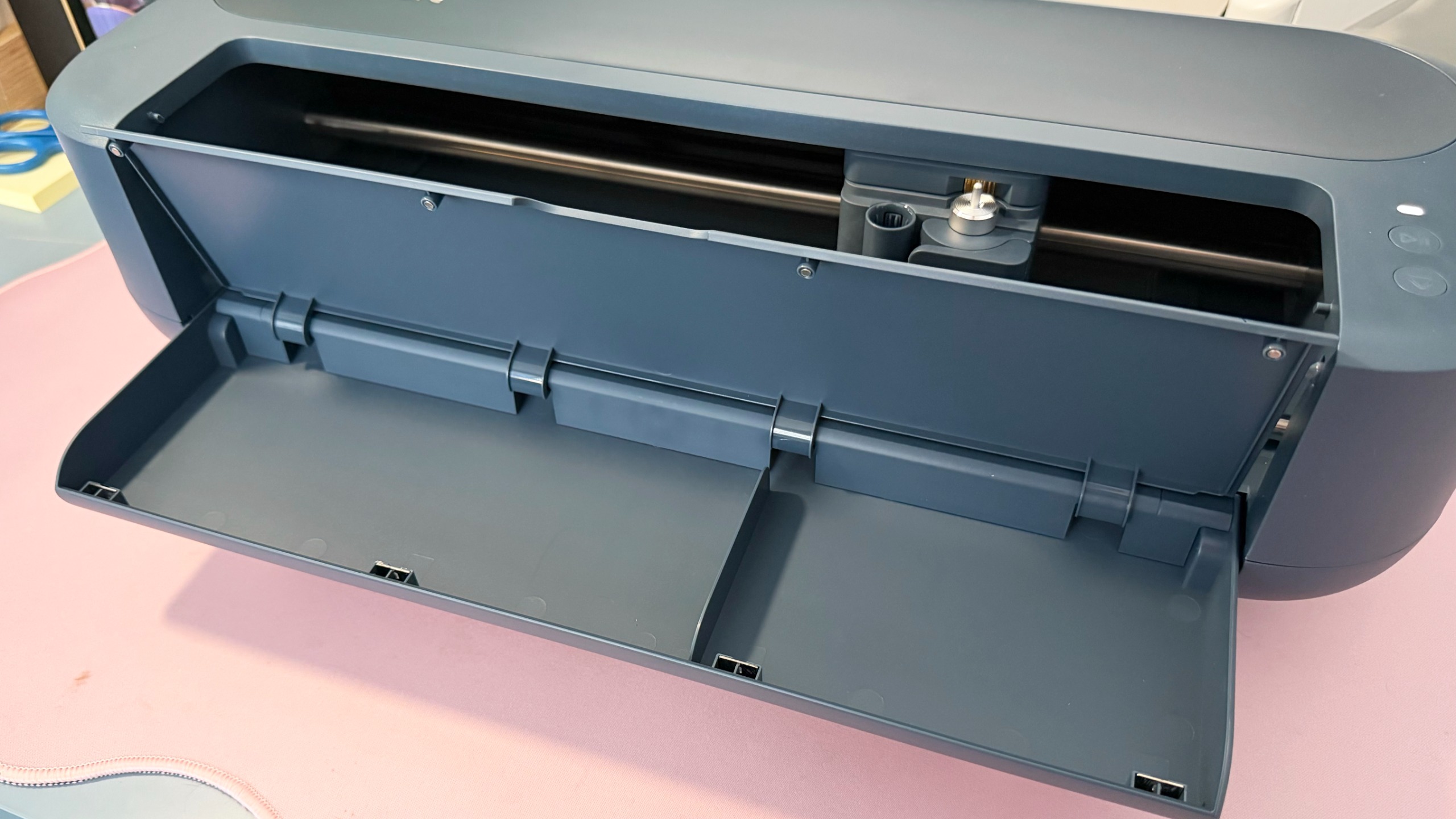
At the time of the Joy 2's launch, there was no word of the new flagship. But thankfully, the crafting gods heard my call and have officially launched the Cricut Maker 5. The newest generation brings together expanded material capabilities, specialized tools, and an intuitive guided design experience with the accompanying Design Space app. The machine also touts a new lidless design, similar to the Explore 5, and is 30% more compact than the Maker 4.
It goes without saying that I skipped into this review very eager to take it on. After all, the Cricuts of my past hadn't disappointed me so far... but still the question remained — is the Cricut Maker 5 worth the $349 / £349.99 / AU$699 price tag? Let's find out together, shall we?
Cricut Maker 5 review: Price and availability
As with most Cricut machines, the Cricut Maker 5 can be found at craft stores and major retailers globally. In the U.S., crafters can buy the machine directly from Cricut US for $349 by itself, or with the Essentials Bundle for $399 (more on that below). Similarly, crafters in the U.K. can buy the Cricut Maker 5 directly from the brand's website for £349.99 by itself, or for £399.99 with the Essentials Bundle.
In Australia, the machine retails for AU$699 and comes with the Essentials Bundle as standard. You can buy it from retailers such as Harvey Norman, Spotlight or Officeworks.
As the new flagship, the Maker 5 is the most feature-packed device, and its new improvements are pretty notable. For starters, you can create custom projects with over 300 compatible materials, and you can also cut and engrave materials up to 3mm thick — which is a 25% increase in clearance compared to the previous generation's 2.4mm limit.
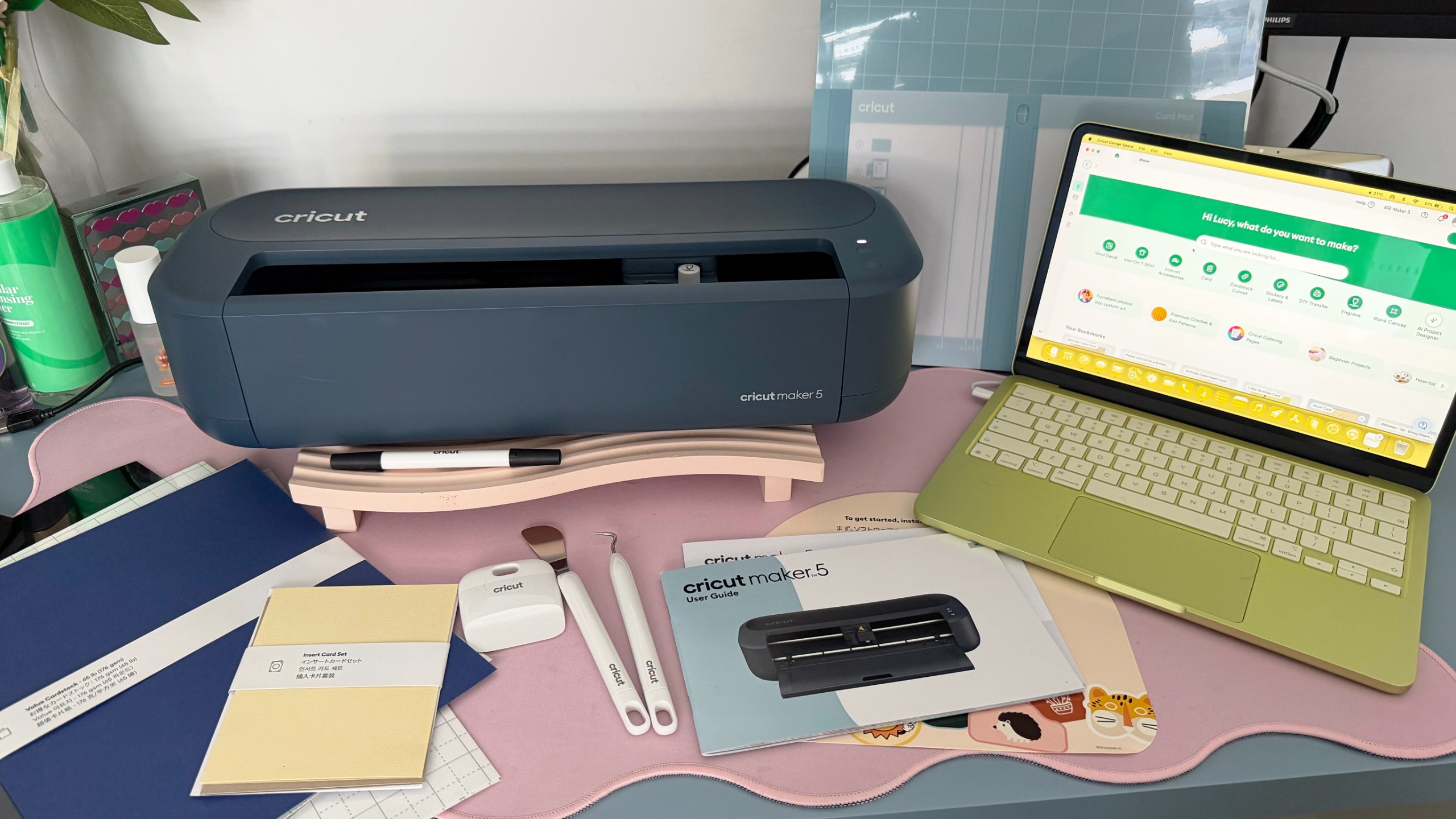
At launch (September 9, 2026), the Cricut Maker 5 comes in one colorway: Slate Blue. Design-wise, it takes on a similar, compact footprint as seen in the Explore 5 and loses its lid in favor of a flat surface where you can rest your tools mid-make. The machine also has two buttons on the front — a power switch and a pause/play button — both of which will illuminate when the machine is on or in use.
With 13 compatible tools, the Cricut Maker 5 cuts, writes, draws, foils, scores, debosses, embosses, engraves and more, so your project options are truly endless. You can create projects of any size, with the Maker 5 capable of cutting materials up to 12ft / 3.6m long in one go. When using the machine mat, you can cut up to 11.5 x 23.75 in / 29.2 cm x 60.3 cm, as per the mat's width. If using Cricut's matless Smart Materials, you can cut up to 12 in x 12 ft / 30.5 cm x 3.6 m.
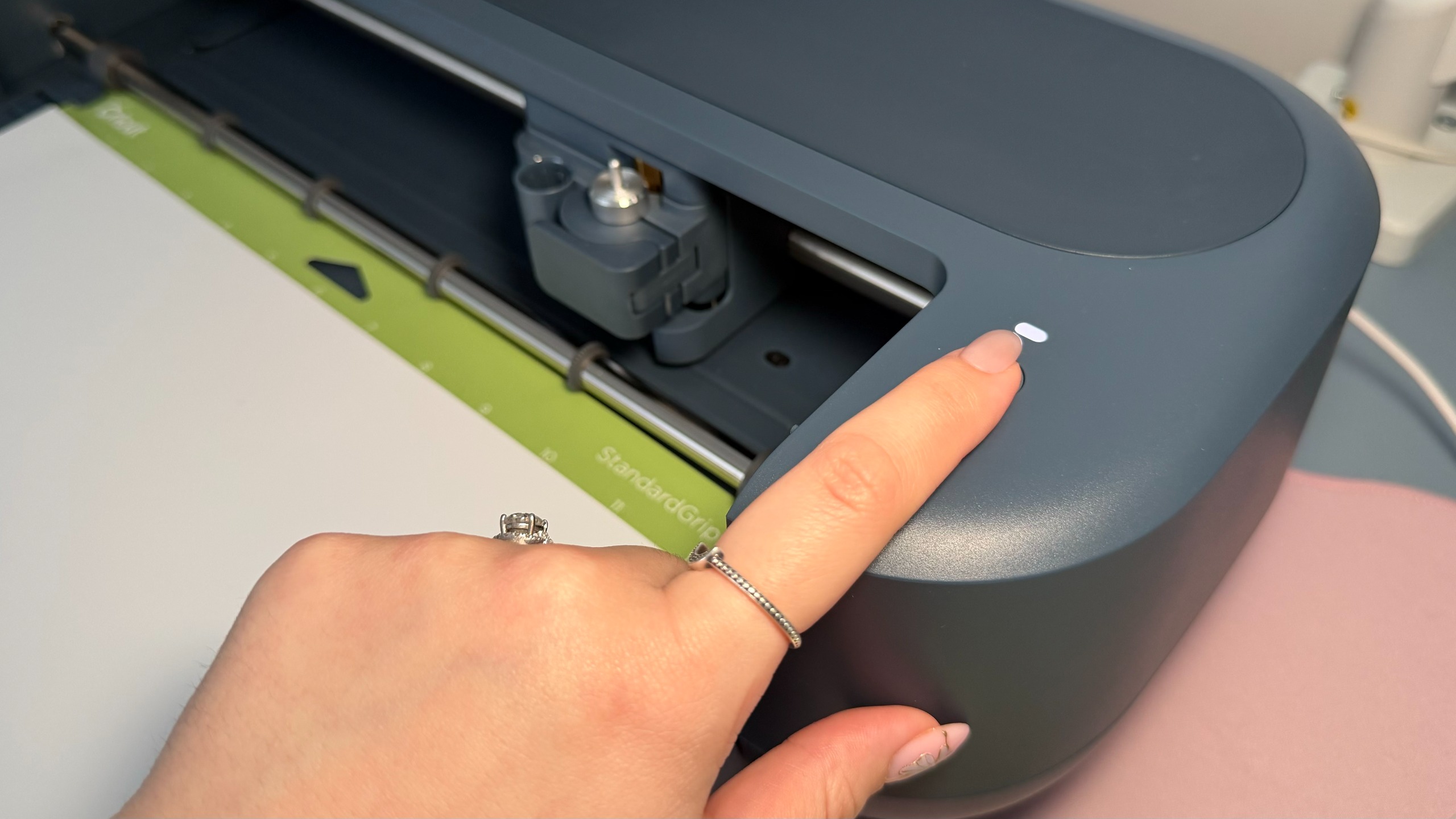
When it comes to Cricut bundles, there are a few to choose from, depending on country availability. As mentioned, Australian machines come with an Essentials Bundle, whereas other markets can opt to include the Essentials, Ultimate or Ultimate Plus bundle at varying price points. For the most part, the Essentials Bundle has everything you need to get crafting straight out of the box, with up to 65 projects worth of materials.
The Maker 5's Essentials bundle includes tools and ready-to-craft items such as value cardstock, Cricut-branded Smart Vinyl, transfer tape, iron-on sheets, insert card sets, printable vinyl and a portable trimmer. As for machine blades, the bundle has a standard cutting tool, a scoring tool, and an engraving tool (both typically sold separately). The bundle also features a light grip machine mat and a card mat.
If you opt for a non-bundle package or quickly run out of your materials, Cricut sells branded materials, such as cardstock, vinyl and sticker sheets, along with accessories like additional cutting blades, fine-point pens and markers and activity-specific mats (like a fabric mat).
Additional vinyl or material rolls typically cost around $8.99 / £7.49 / AU$15 for a 4ft / 1.2m roll in black. If you need to replace a blade, you could be forking out anywhere from $37.99 / £39.99 / AU$50 for a Fine Point Blade from previous generations, as the blades are backwards-compatible. You can easily find off-brand dupes; however, Cricut always recommends using materials and tools directly from the brand.
Cricut Maker 5 review: Specifications
|
Price (RRP) |
$349 / £349.99 / AU$699 |
|
Warranty |
2 year |
|
Dimensions |
19.8 in x 7.5 in x 4.7 in / 50.2 cm x 19.05 cm x 11.9 cm |
|
Weight |
10.9 lbs / 4.94 kg |
|
Max cut size using the machine mat |
11.5 x 23.75 in / 29.2 cm x 60.3 cm |
|
Max cut size using Smart Materials |
12 in x 12 ft / 30.5 cm x 3.6 m |
|
Cut speed |
up to 14.1 in per second |
|
Included in the box |
Cricut Maker 5 cutting machine, Premium Fine-Point Blade, Scoring Blade, Engraving Blade, Light Grip Machine Mat, Fine Point Pen, Mini Weeder tool and Essential materials pack |
Cricut Maker 5 review: Performance
As mentioned, you can customize and create almost anything with a Cricut cutting machine, let alone the Maker 5. For this review, I really wanted to focus on what was included in the Essentials Bundle, as it provides so many projects to start off with. I was also keen on using the engraving tool, as I hadn't done that previously. So to keep it all concise, I focused on two key projects: vinyl cutting and stickers.
And with all Cricut machines, the Maker 5 operates wholly within the Design Space app. You'll need to complete your design and hit the "Make" prompt before the machine will cut it. You'll also need to be connected to Wi-Fi and have at least 3 in / 10 cm clearance behind the machine to allow the mat to glide in and out while cutting.
Vinyl Cutting
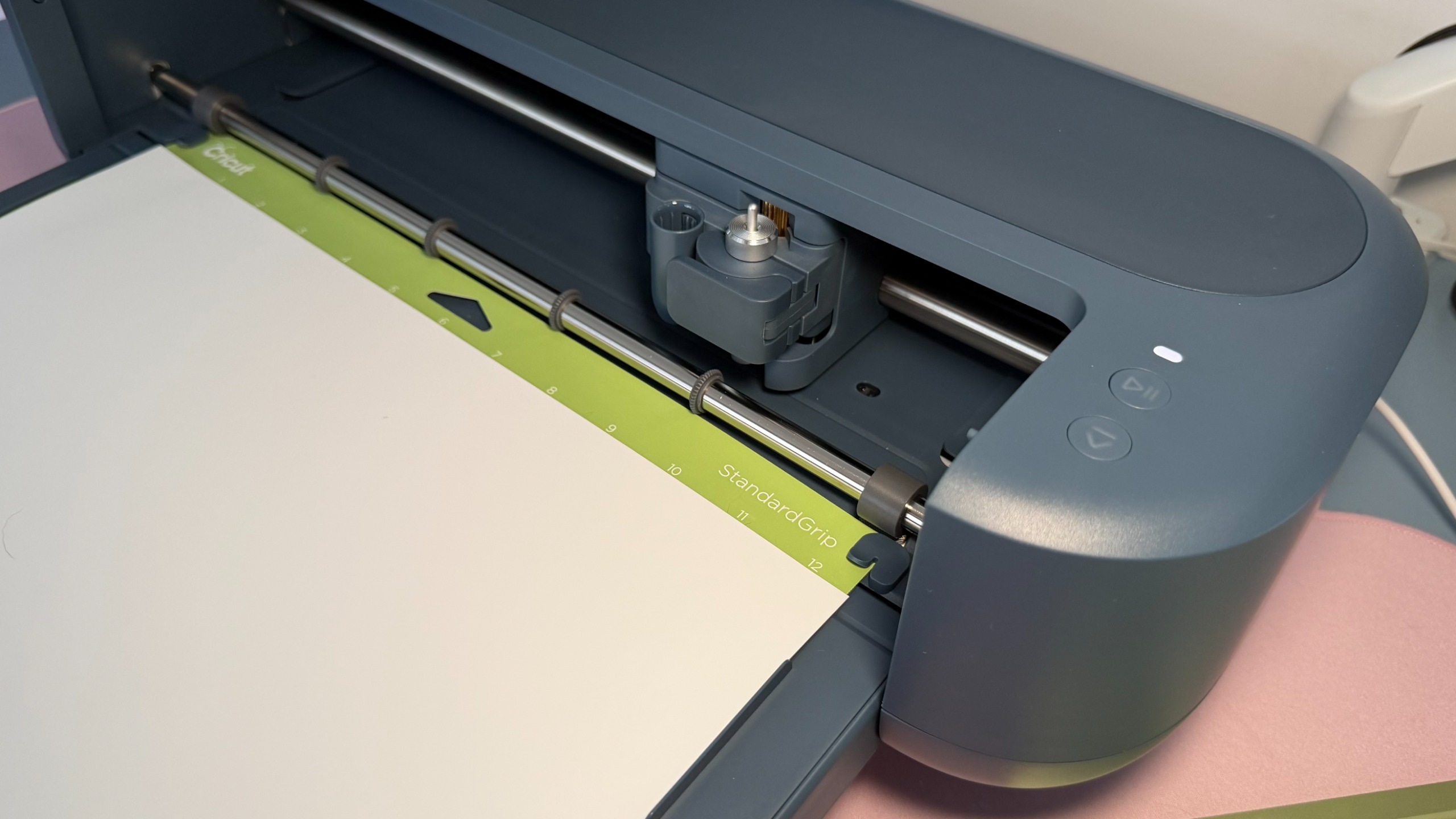
Vinyl cutting is as synonymous with Cricut machines as it gets. The Maker 5 comes with a 12 in x 12 in / 30 cm x 30 cm adhesive mat, which makes all materials that cling to it immovable. As with most Cricut machines, you'll need to practice with a test cut, and the app will walk you through how to do it.
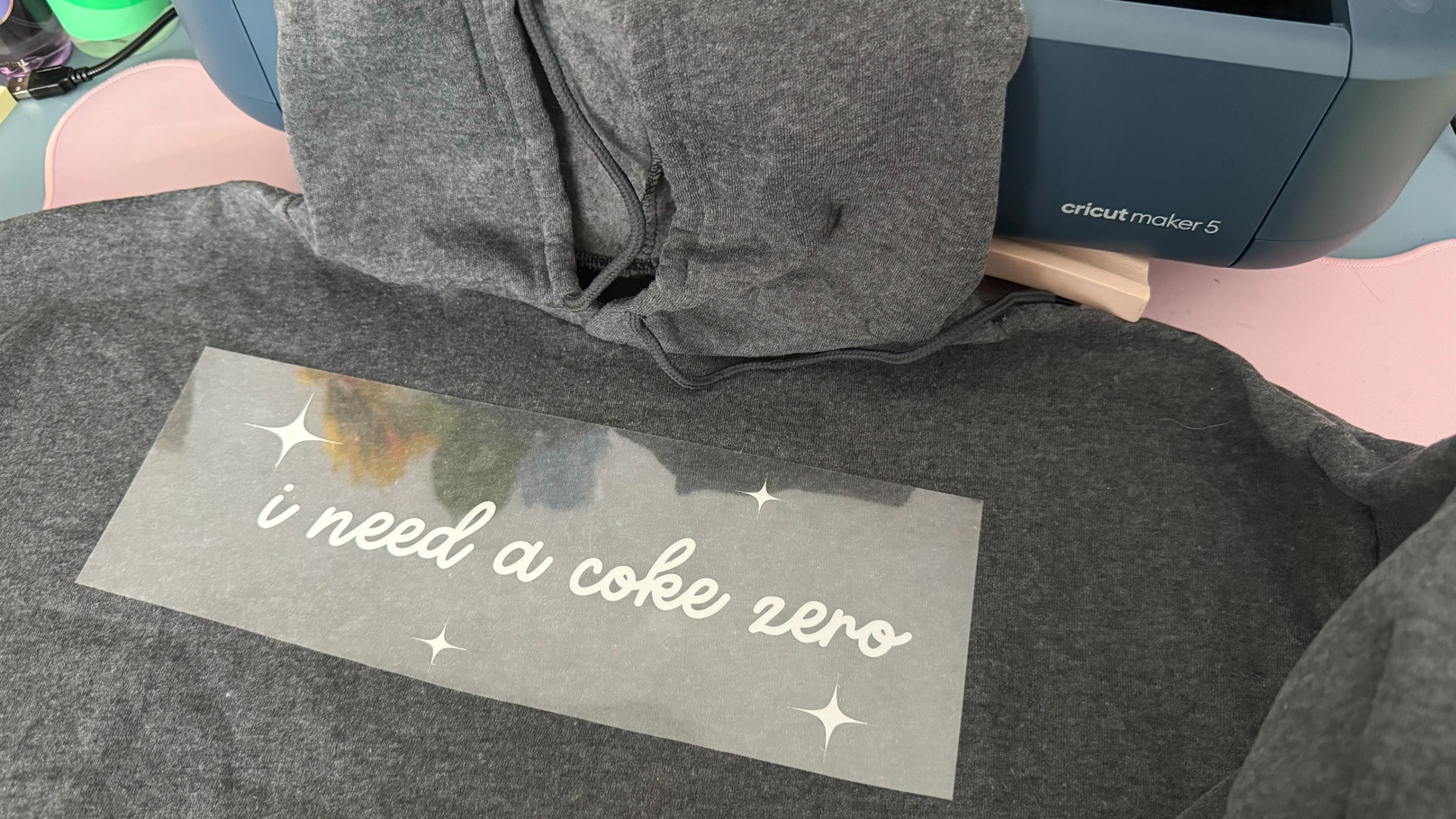
This wasn't my first rodeo after all, so I cut my test piece and moved pretty quickly onto the actual design I wanted to make. This time around, I decided to rifle through my old hoodies and cut an iron-on vinyl design to give it new life.
I am a Coke Zero enthusiast, so it made sense to exclaim my love for the drink with a hoodie. After designing and picking out my text, I was ready to cut.

Using the Design Space app, you can create your own designs or use SVG files made by other creators within the Cricut community. For this review, I was supplied with a complimentary premium subscription to Cricut Access — a paid service that provides unlimited access to a library of images, fonts and projects within the Design Space app.
After finishing up my design, I loaded the white iron-on vinyl onto the mat provided and let the app guide me through the process. From cutting to "weeding" (removing the cut vinyl from the mat) and ironing, I had step-by-step instructions, so I really couldn't get any part wrong. Once loaded into the machine, all I had to do was hit the "play" button and the machine took off, cutting my design in a matter of seconds. It was so speedy!
Iron-on vinyls have the additional step of ironing onto your preferred fabric, so I used baking paper on top of my design and let the iron do its job. After a few minutes, I was presented with my final design, and I was quite pleased with it.
Engraving
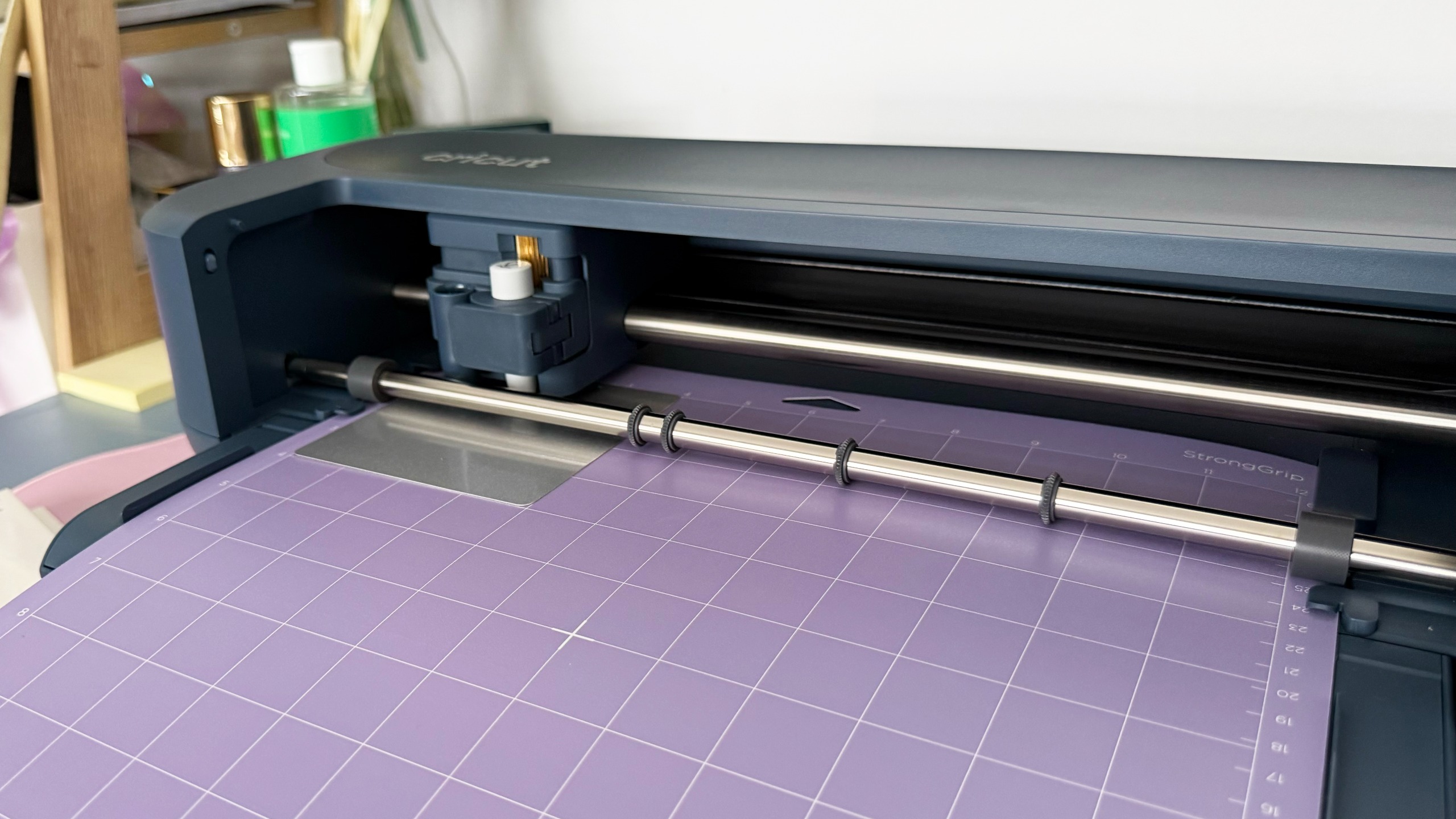
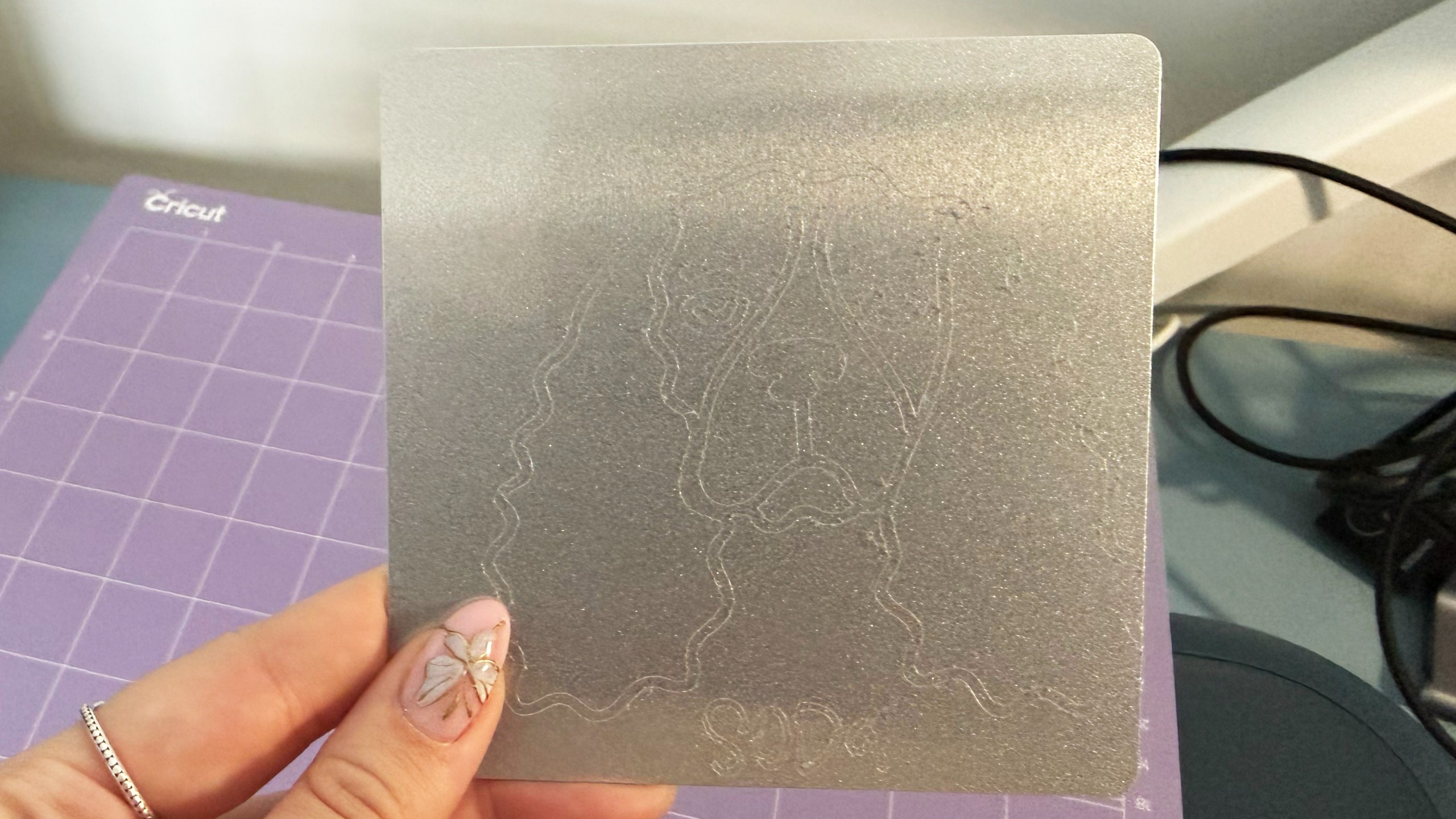
Look, I won't lie here: I had some human error come into play, but I still think engraving with the Cricut Maker 5 is the easiest thing ever.
I was super keen to engrave with the new machine, so much so that I promised my sister that I would gift her my first creation — an engraved portrait of her dog, Soda. As it was my first time engraving, I watched Cricut's YouTube tutorial, which was super helpful and cracked on with my design.
After finishing up with the design process, I eagerly stuck down the aluminum sheet I was going to use, without thinking twice about its placement. One of the biggest downfalls that any newbie Cricut user can have is not lining up the material correctly on the mat — and I knew better.
Before hitting "Make", Design Space will mockup where your design will lie on the mat. It's totally moveable, and you can change the placement to suit your material. I will claim rookie error here, as I didn't refer back to my laptop screen before letting the machine do its thing and it resulted in my design being a little off-center.
It's not the end of the world — most Cricut crafts need some trial and error before you get the hang of it — but it's something to keep in mind. My design didn't turn out exactly as expected; however, with a few fixes, it would have been excellent.
In terms of the cut, the Maker 5 exceeded all expectations, without surprise. I loved watching how seamless and quiet it was as it sliced through the material. I will definitely be engraving again and taking my own advice next time.
Cricut Maker 5 review: App features
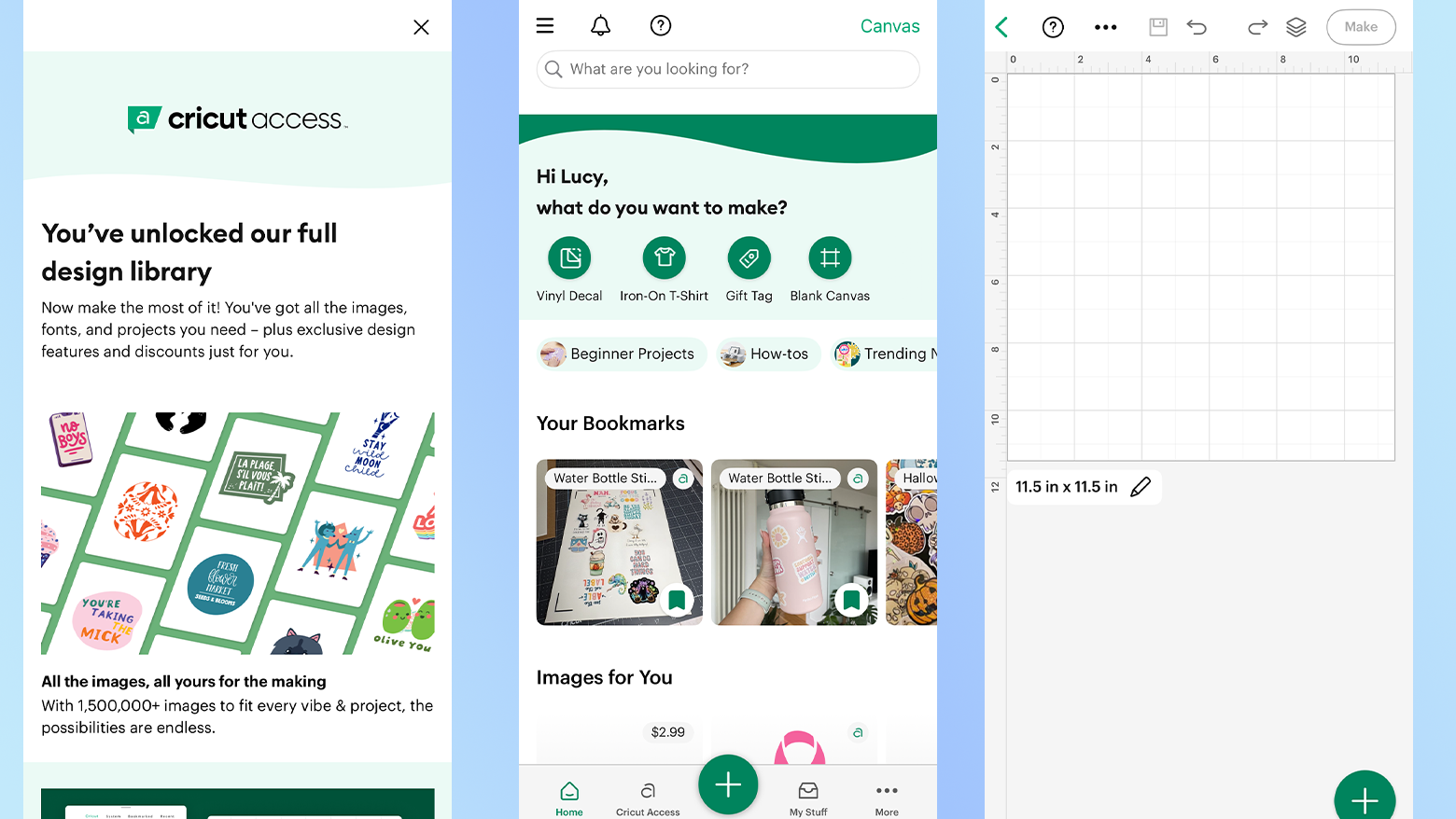
The Cricut Design Space app is truly where all projects begin, and over the last 12 months, my experience with the software has gotten so much better. It started off as a buggy, not-very-helpful app, but now it has seamless automations, helpful prompts and tutorials for most projects.
You'll need to set it up on your preferred devices before getting started with the Maker 5 and you'll find QR codes on the box and in the instruction manuals for the App Store and Google Play Store. Design Space is also available for PC and Mac.
I use the app on my personal MacBook Neo and my iPhone and have had very few issues with it this year. Of course, that's largely due in part to the improvements that were introduced during the Joy 2 and Explore 5 launch in March.
At the time, Cricut introduced "Guided Flows", which was designed to understand what the user wants to make and provide step-by-step instructions from start to finish. Guided Flows show users only what's needed at each stage of the design process and help them understand exactly which materials and tools are required for their chosen project. Plus, you can now preview your design on the canvas by clicking the preview button, and you can find templates for most projects, just in case you need some inspiration.
Alongside this, Cricut welcomed a "Create AI" feature for paid Design Space subscribers, which allows you to generate custom single-layer AI designs. Having said that, this tool might not be the most essential, given the community offers plenty of designs you can use, but it can provide powerful niche customization.
Guided Flows are really a lifesaver for me when starting new projects, and is arguably the most useful feature in the app. If you're completely new to the world of Cricut cutting machines, Design Space takes away a lot of the crafting instruction hassle. If you're a seasoned Cricut veteran, you'll appreciate that the automations take away some manual processes — i.e. Auto Loading and selecting your material.
Designing in the app is very similar to Canva and Photoshop, and you can use templates to help you during your process. You can adjust the size of your canvas to fit a specific dimension — e.g., a water bottle decal or a children's t-shirt — and create your design to fit within that shape. I found the app very intuitive and easy to use, as I am a frequent user of the Adobe Creative Suite. However, a step-by-step tutorial is available in the app for anyone not as familiar with design programs.
There's a wealth of fonts, shapes, images and everything you need in between to help create the perfect design within the app, and there are plenty of options for every user, including those not on a paid subscription. For those interested in the paid subscription, Cricut Access starts at $9.99 / £7.49 / AU$13.99 per month and gives you access to the entire Design Space library.
Cricut Maker 5 review: Verdict
I feel bad saying this in front of my Maker 4, but I adore the Cricut Maker 5. I am beyond impressed. From the included material bundle to the new design and speedy cutting, this machine will be my new favorite obsession.
That said, it is very similar in functionality to its predecessor. If you already own the older model, you're not missing out on much. However, if you're considering the Maker 5 as your first machine or an upgrade from a Maker 3 or below, this is definitely worth it.
Again, the rather hefty price tag is quite the investment for anyone, let alone a heavy-duty crafter or small business owner. However, when you include the Essentials bundle and the fact that you can start creating straight out of the box, the value is pretty exceptional.
Keep in mind, though, that after the bundle materials run out, purchasing Cricut-branded materials can add up.
This is a preview from the original publisher. Continue reading at the source:
Read Full Article on tomsguide.com →