

I tried the new Siri AI features: here's 3 you'll actually want to use every day
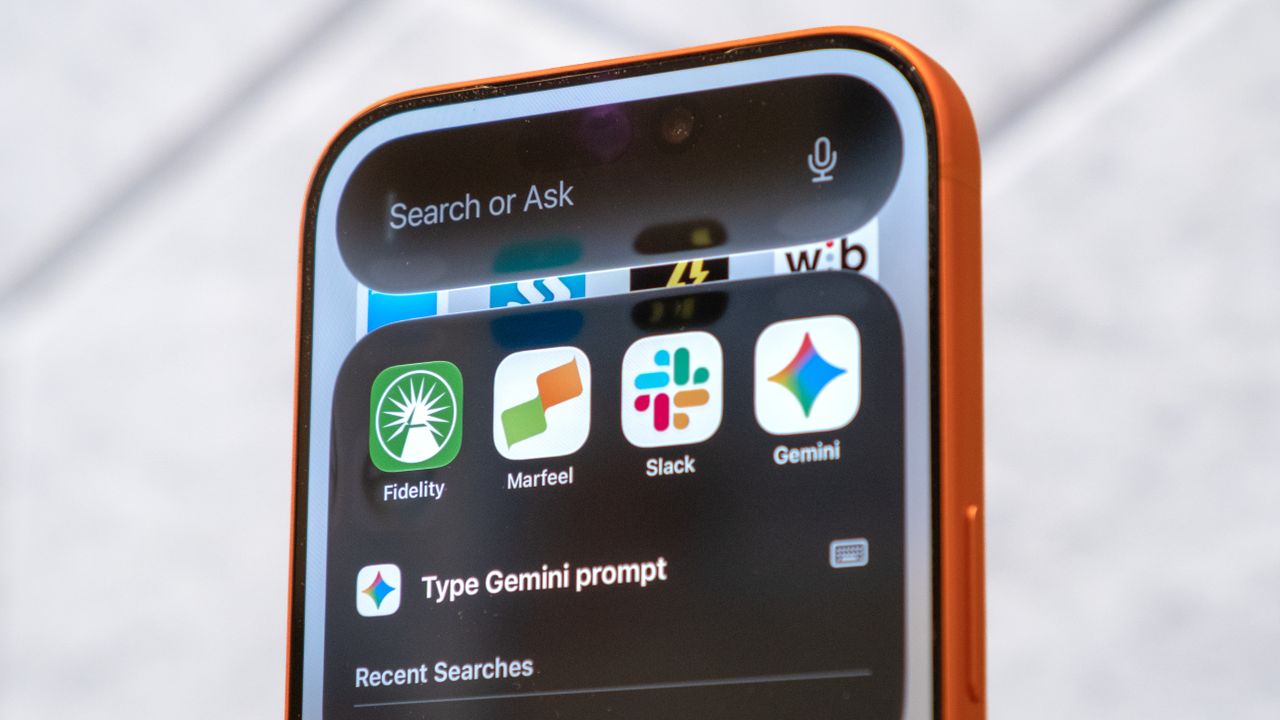
I’m pleasantly surprised that Siri AI focuses on fixing the tedious tasks that slow you down. Instead of gimmicks you use once and forget, these updates give Apple's assistant the ability to see your screen and search your files using normal language.
They strip the tiny friction points out of your normal daily routine, changing how you handle everything from scrolling to scheduling. Here are the three practical features you will actually use every day.
Before diving in
You will want to make sure your device can actually run the new assistant. The new Siri AI requires you to be running iOS 27 and requires an iPhone with specialized Apple Intelligence hardware.
The compatible iPhones are the iPhone 15 Pro, iPhone 15 Pro Max, and the iPhone 16 and iPhone 17 lineups. If you have one of these supported devices in your pocket, you can start using these tools now via the iOS 27 beta, or as soon as the public update hits your phone.
3 new Siri features you’ll actually use
1. Deep search in Photos
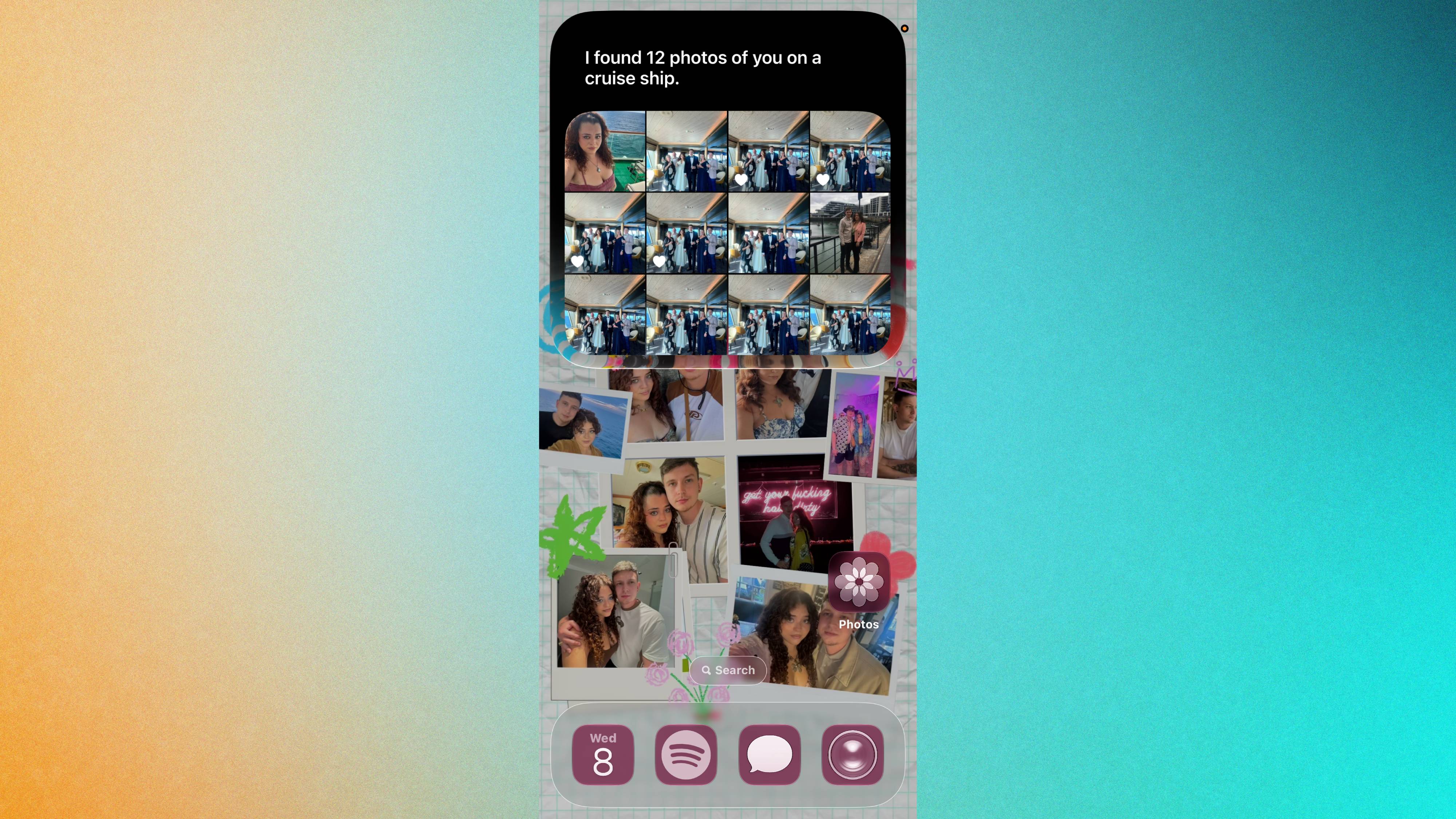
Instead of manually scrolling backward through your library to find a specific memory, you can now filter your entire library using natural, highly specific language. To try this, summon Siri and describe the exact scene you are looking for.
For example, you can say "Siri, pull up pictures of me on a cruise ship" and the AI will parse the visual details of your library to isolate those specific images. If you have a hefty photo library, this is an absolute time-saver.
2. On-screen contextual awareness
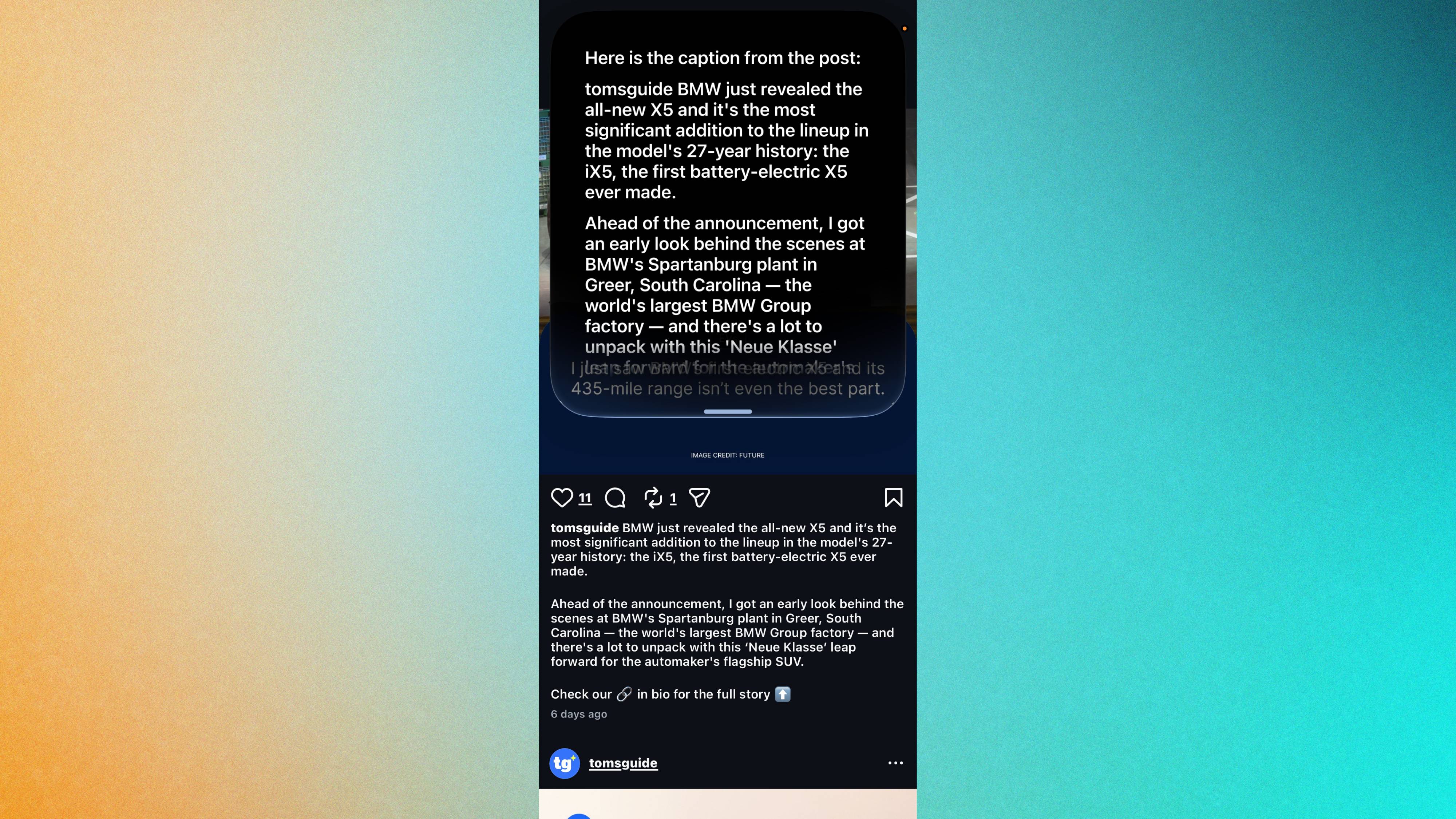
Siri can now actively interpret what is happening on your display in real time. When you are looking at a social media post and want to save the text, for example, simply activate Siri and say "Copy the caption underneath this post."
It will read the screen context, isolate the text block from an app like Instagram, and copy it directly to your clipboard.
3. Smart calendar invites
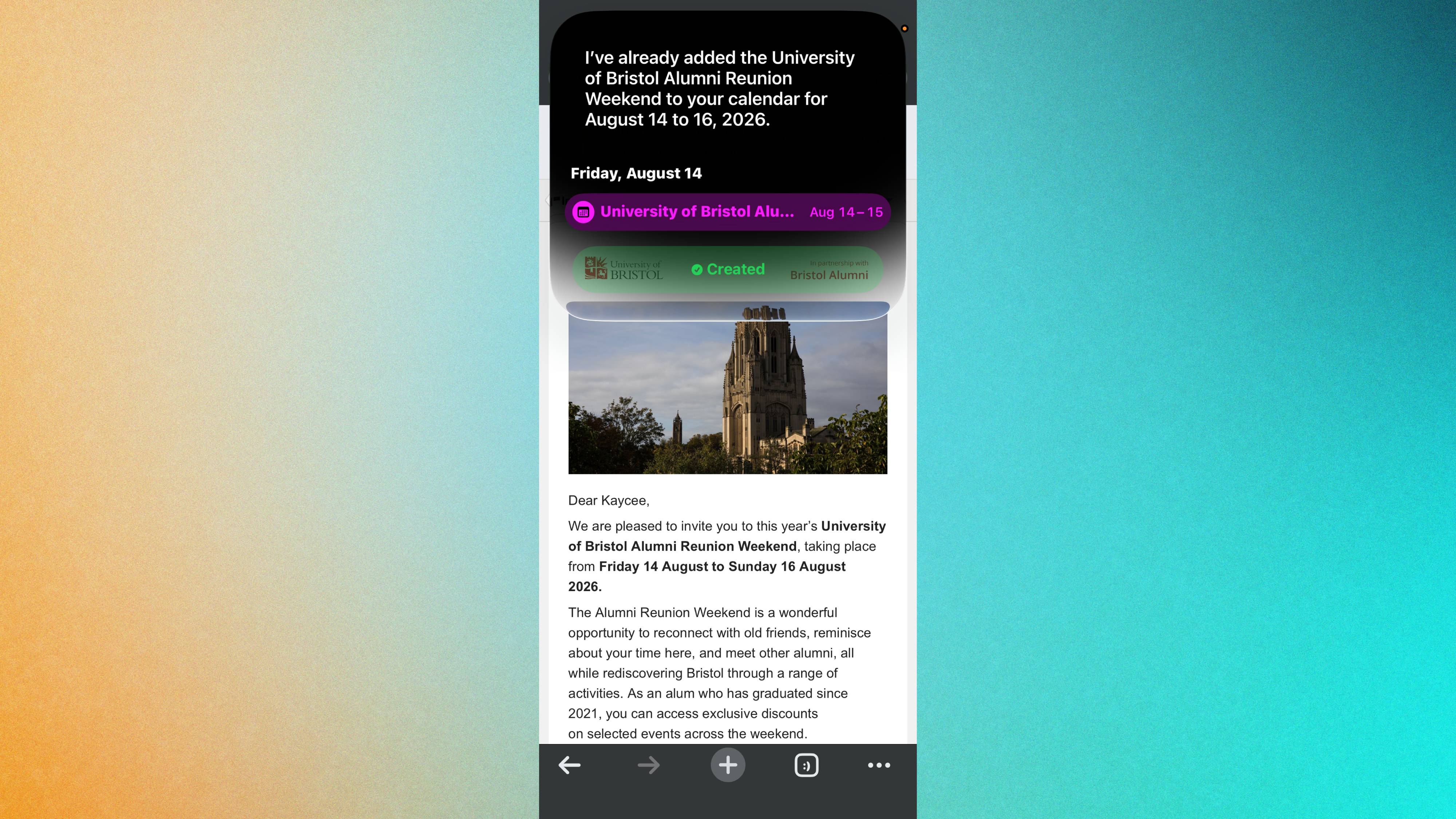
Managing a chaotic schedule becomes significantly easier when Siri can bridge the gap between your inbox and your planner automatically. When you receive a message containing appointment information, open the email and say "Copy this to my calendar."
Siri will copy the text, extract the precise date, time, and event title, and generate a calendar event without requiring you to type out a single detail. It has become my favorite shortcut, making my days feel just a little bit more seamless whenever a an invite hits my inbox.
More from Tom's Guide
This is a preview from the original publisher. Continue reading at the source:
Read Full Article on tomsguide.com →