

I love my Samsung TV, but this feature was driving me crazy and wasting my money — here's how to turn it off
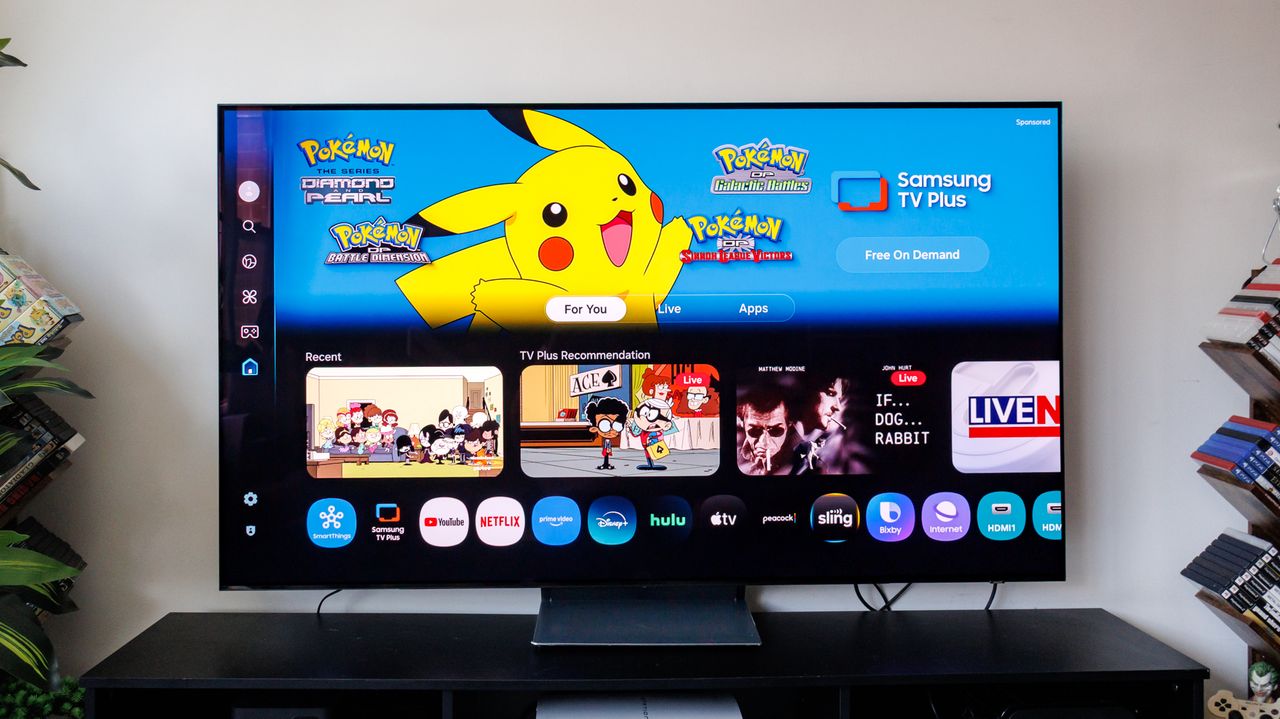
Most of us try to be mindful of our electricity usage, so discovering that a household appliance is powering itself on behind your back is incredibly frustrating. That was my exact reality with a screen that insisted on waking up every time I entered the room, quietly draining power when nobody was even watching.
As it turns out, my TV was just a little too 'smart.' Many Samsung TV models, including the best OLEDs and QLEDs, use built-in motion detection to wake themselves up, which ends up wasting power just because you or your pets happen to walk into the room.
If you want to save your sanity and lower your energy costs, here is exactly how to shut it off.
1. Disable the motion and presence detection

If your TV keeps waking up into art mode or a normal screen when it senses movement, you need to turn off the primary ambient sensor.
To do this, grab the remote and head to the main Settings menu, then select General & Privacy. From there, navigate to Intelligent Mode Settings, though on some models you might need to look for Eco Solution or Power and Energy Saving.
Once inside that menu, look for Motion Detection, Presence Detection, or Auto Power On with Motion Sensor and toggle the switch completely off.
2. Check the accessibility settings
On some Samsung models, the motion sensor is actually tied to accessibility features rather than standard power-saving modes, which makes it easy to miss.
To check this, go back to the main Settings menu and select General, followed by Accessibility. Scroll through the options until you find the specific Motion Detection toggle and ensure it is switched off here as well.
Bonus tip: The mobile app fix
If the TV is still turning on by itself after tweaking those settings, the hidden culprit might be a smartphone or smart home integration. For anyone who uses the SmartThings app, a phone can broadcast its location and tell the TV to wake up the second it connects to the living room Wi-Fi network.
To cut off this trigger, open the Settings menu, go to Connections, and then select Network. Inside Expert Settings, ensure that features labeled Power on with Mobile, Wake on LAN, and Allow IP Control Devices are turned off.
More from Tom's Guide
This is a preview from the original publisher. Continue reading at the source:
Read Full Article on tomsguide.com →