

Google Maps only showing preview? Here’s how to get the start button back
You've entered your destination into Google Maps, the route is calculated, everything looks correct. Then you tap the screen expecting to start navigation and all you see is Preview. No Start button.
It's one of the most frustrating experiences with the app and I've seen this problem come up repeatedly in comments and messages: people are stuck staring at a Preview button with no explanation for why navigation isn't showing as Start.
The frustration is justified, but the fix is quite simple. Google Maps just needs one piece of information to proceed. Here's what's going on and how to actually start your navigation.
Why Preview appears instead of Start
Google Maps shows Preview instead of Start for three specific reasons. First, you haven't set a starting point. Google Maps usually picks your current location automatically, but sometimes it doesn't.
Without a clear start point, the app won't let you begin navigation, it can only show you a preview of where you'd go.
Second, Google Maps lacks permission to access your location. The app needs to know where you are to confirm your starting point matches reality. If it can't pinpoint your location precisely, Preview is all you get.
Third, and this one might surprise you, your actual current location isn't on the route you've selected. Google Maps detects that you're not at the starting point of your route and nowhere along its path. This is intentional behavior. Google Maps prevents you from navigating a route you're not positioned to take.
Set your starting point and grant permission
Open Google Maps and enter your destination. After selecting where you want to go, look for "Choose starting point" and tap it.
From the menu that appears, select "Your location" at the top. This confirms to Google Maps that your current position is where navigation should begin.
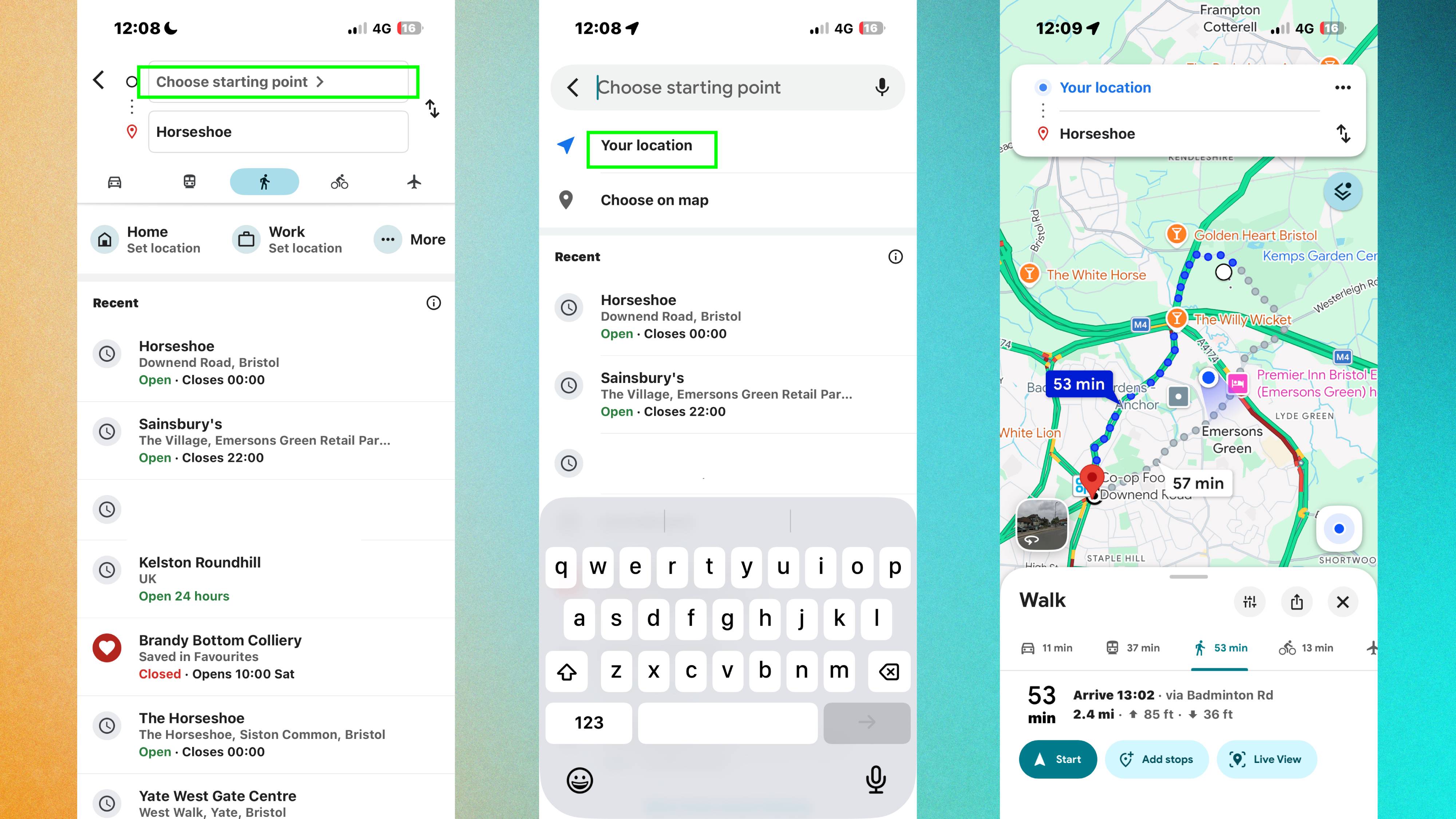
This single step resolves the Preview issue for most people. By explicitly setting your starting point to your current location, you're giving Google Maps the confirmation it needs.
On iPhone, open Settings and tap Apps. Find Google Maps and select it. Then tap Location and choose either "While Using the App" or "Always." Just as with Android, enable the toggle for "Precise Location" below.
Once these permissions are active, Google Maps can accurately identify where you are and match that to your route. Navigation should work immediately.
Granting location permission on Android
If Preview persists after setting your starting point, Google Maps lacks location access. On Android, open Settings and navigate to Apps. Find Google Maps in the list and tap it. Now select Permissions, then tap Location.
Choose either "Allow all the time" or "Allow only while using the app." Then scroll down and make sure the toggle for "Use precise location" is enabled.
Precise location is critical because Google Maps needs exact coordinates, not just approximate area data. Enable this, then try navigation again.
More from Tom's Guide
This is a preview from the original publisher. Continue reading at the source:
Read Full Article on tomsguide.com →