

This hidden Android feature can turbocharge autocorrect and stop all your 'ducking' mistakes
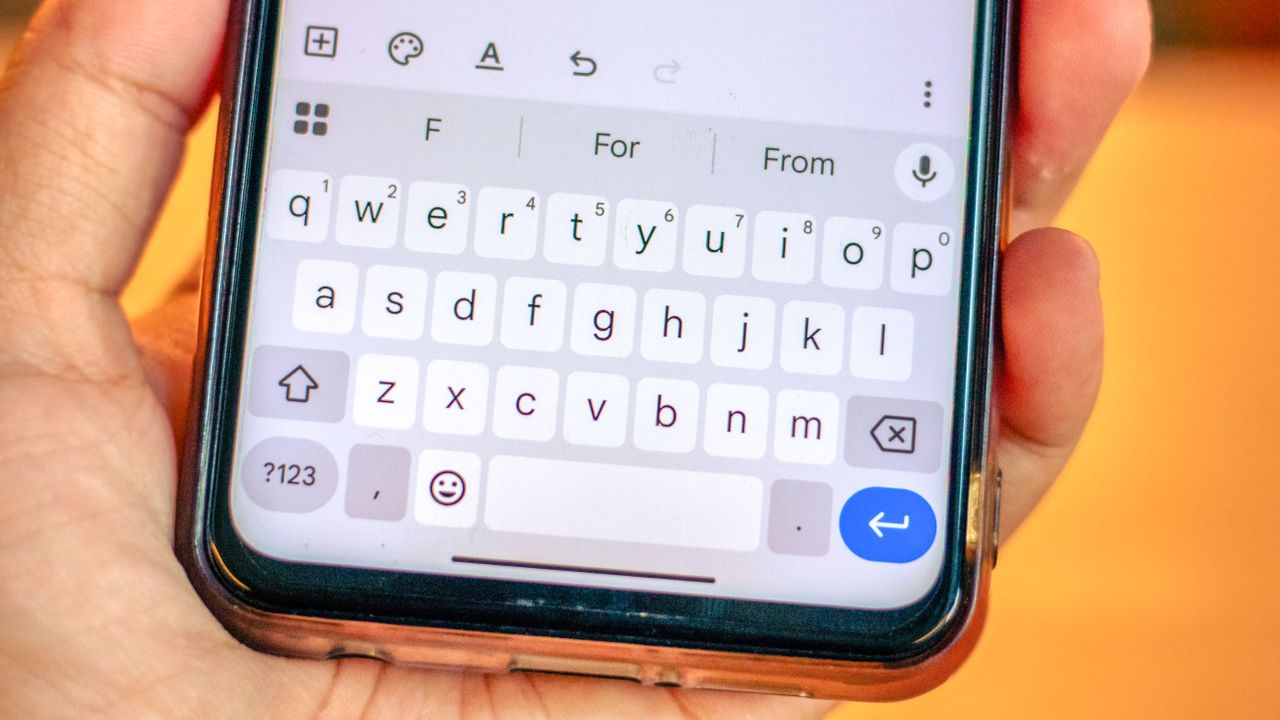
If you've ever felt like Android's autocorrect just wasn't good enough, then you should know that you don't have to suffer in silence. You may not have been aware, but Gboard features something called a "Personal Dictionary," and its hidden feature can be exploited to make your typing experience way better than it currently is.
Provided you know where to go, and what to do, it's actually possible to customize your Personal Dictionary to better suit the way you use your phone. Whether that includes adding words Google is unfamiliar with, fixing all the misplaced autocorrections to keep them from happening, or creating your own custom text shortcuts to make typing things like emails and phone numbers a whole lot easier.
Here's how to access Personal Dictionary on Android phones, and customize the entries to make your life easier.
1. Open Gboard settings from Gboard
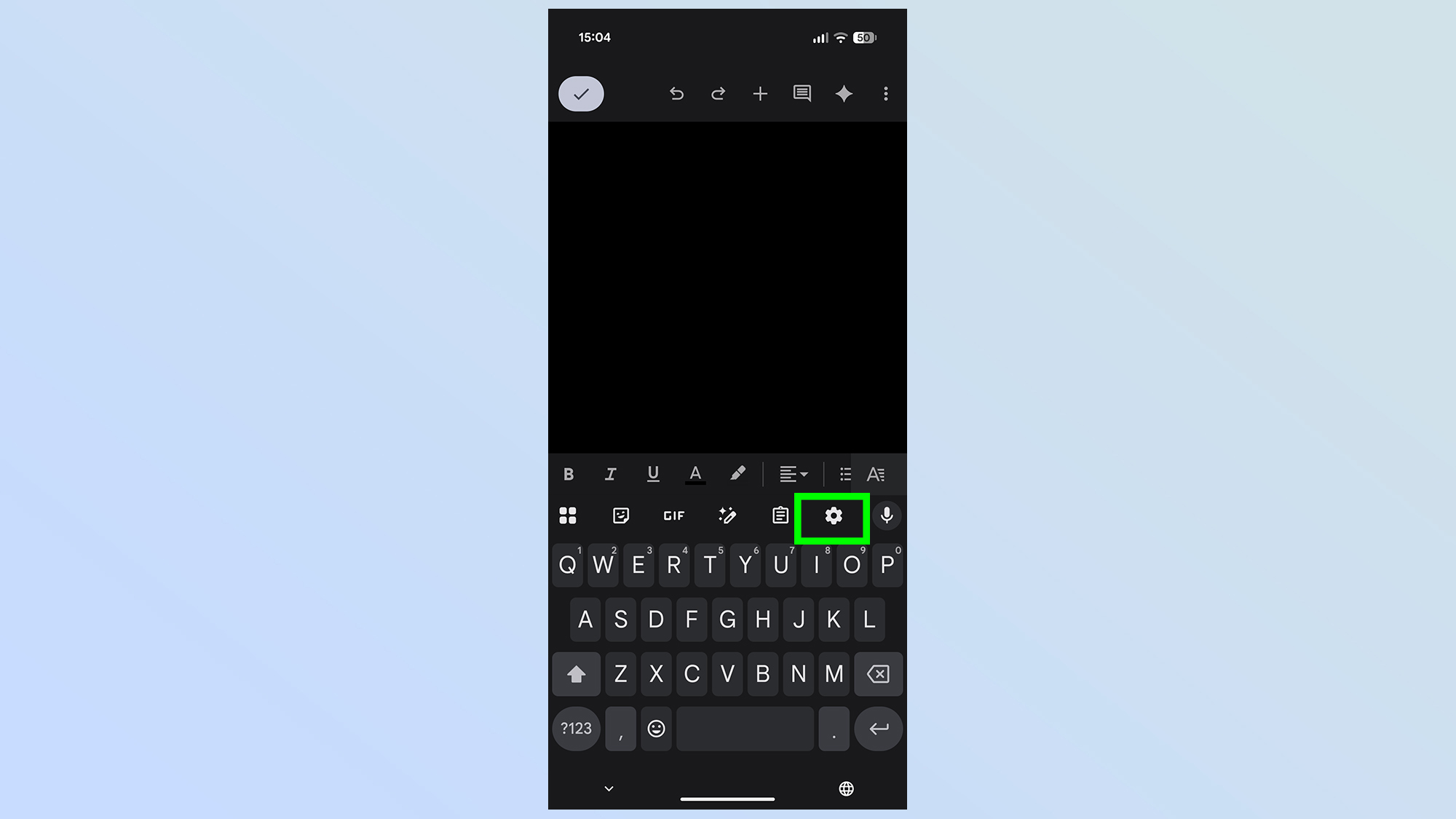
First thing you'll need to do is open up Gboard's settings. All you need to do is open Gboard in any app, and tap the gear icon on the top-right side of the phone.
2. Open the Dictionary settings
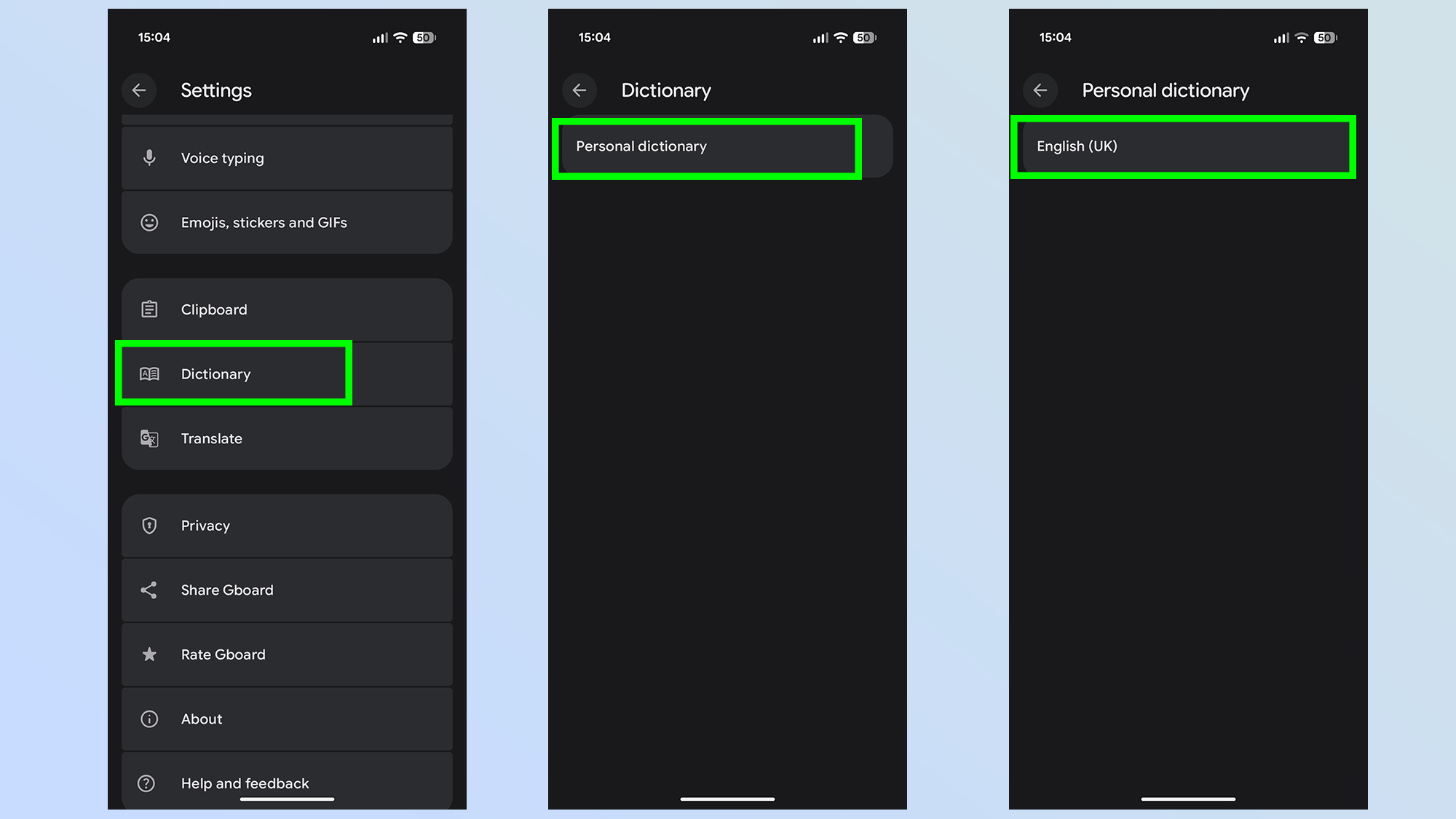
Next up you'll have to scroll down until you see the Dictionary option. Tap this, and then tap Personal Dictionary followed by your language of choice. In my case it's English (UK).
3. Add your words
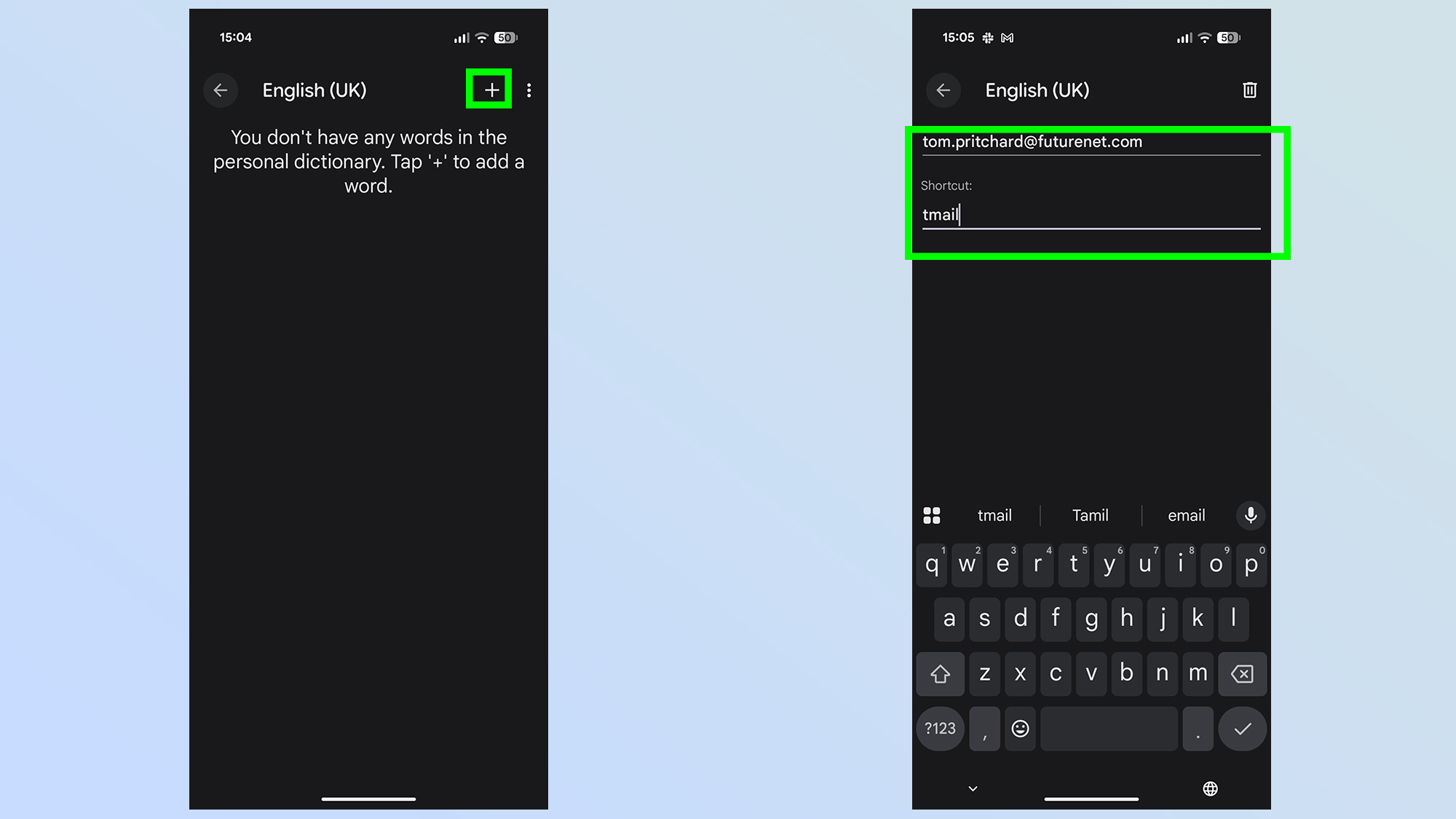
To add a new word you simply need to tap the + icon in the top right, and type your word onto the top row. If you want to add a shortcut, you can add this in the row below. In my case I've added my work email, with the shortcut Tmail to save having to type it out all the time
Once everything has been entered correctly, tap the Back button to return to the previous page
4. Use your new words
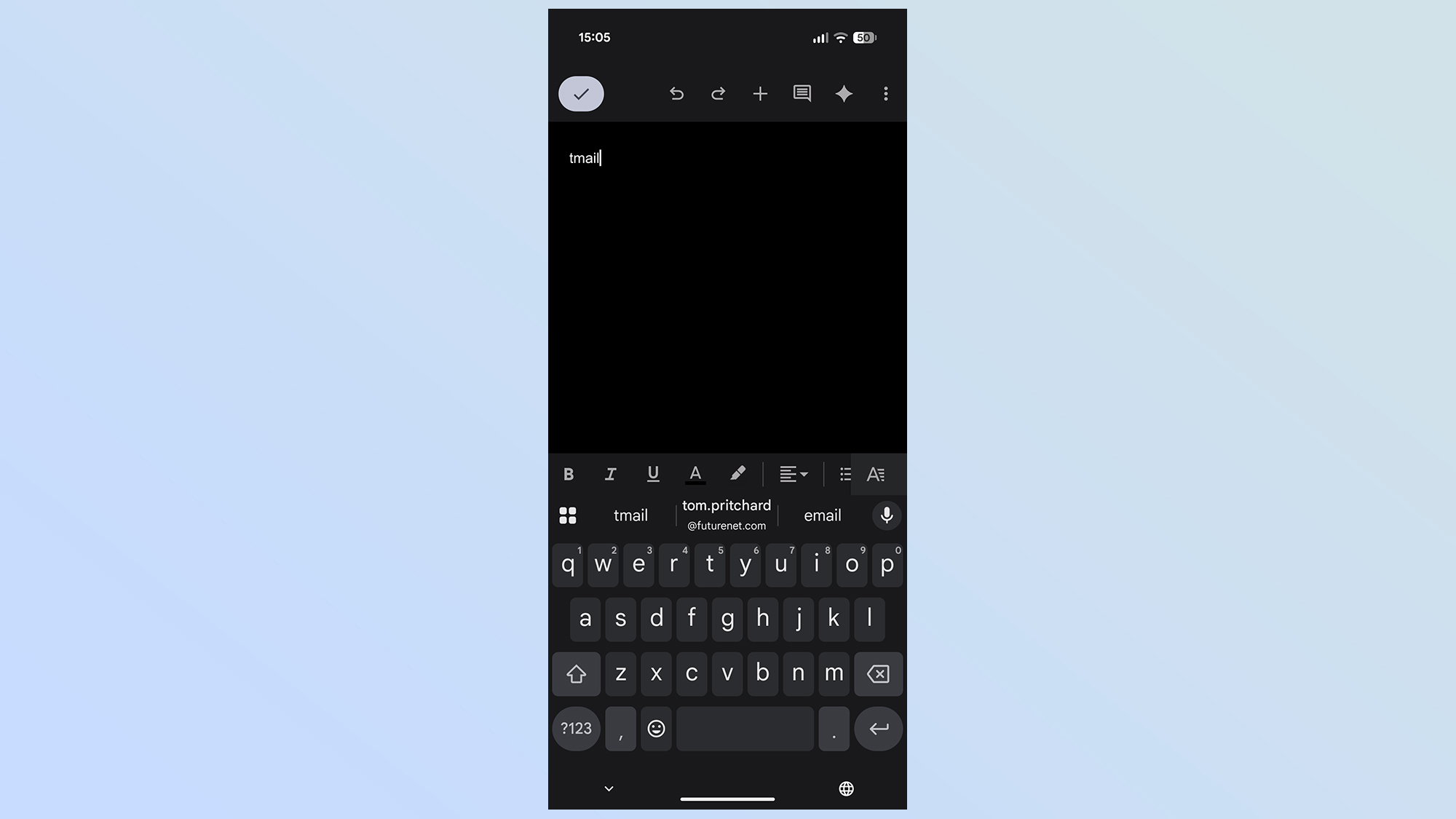
Return to any app that requires typing and put your new words to the test. It won't always add your custom words automatically, but they will appear in the autocorrect box at the top of Gboard.
5. (Optional) Export your Dictionary
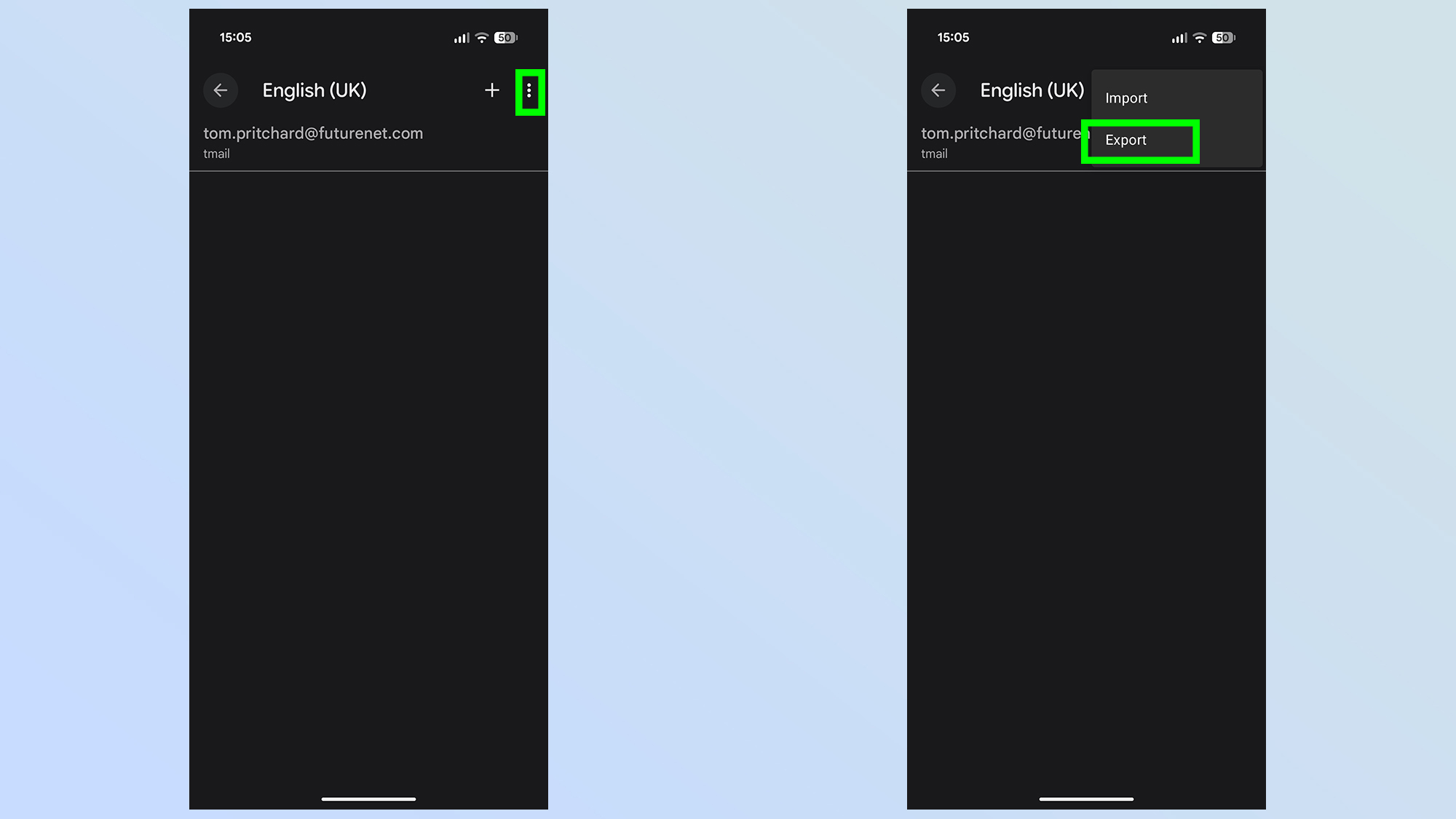
If you ever delete Gboard, or clear the cache, you will lose access to your custom keyboard. So it makes sense to have a backup.
Tap the three dot icon in the top right, and select Export. You'll be asked which default option to pick, I chose Google Drive, and once that's done follow the on-screen instructions to continue.
6. (Optional) Import an existing dictionary
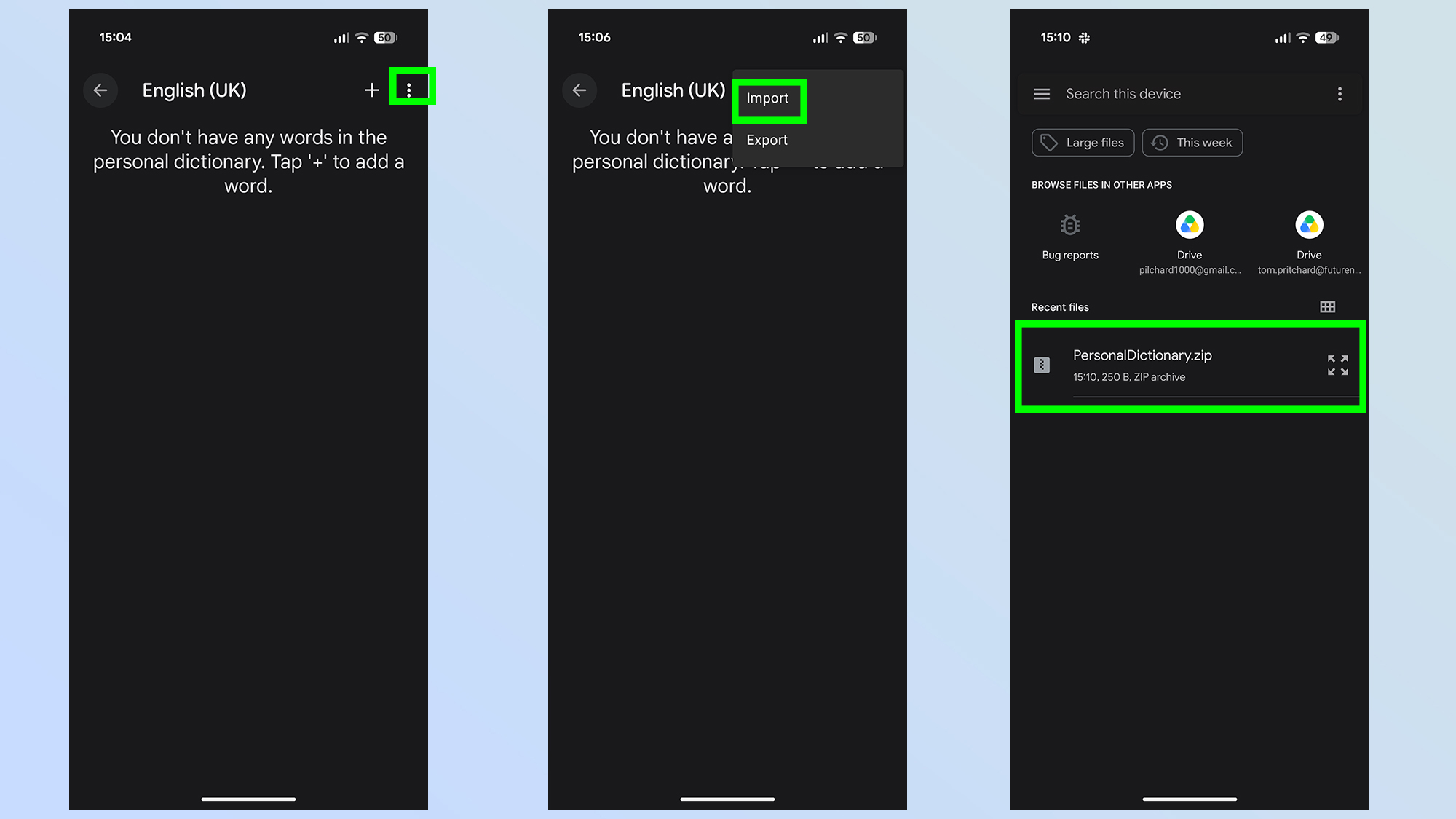
If you ever need to import your dictionary to Gboard again, you can import that backup very easily. Simply tap the three dot icon and select import. You'll then need to locate the correct file, and tap it.
In my case Gboard wasn't able to locate the correct file on Google Drive. If this happens to you, simply download the backup to your phone and it should appear without issue.
There you have it, your own personal dictionary complete with words and shortcuts that Google and its keyboard wouldn't otherwise know.
That means the next time you decide you want to type out whatever obscure words or phrases you've picked up, the autocorrect shouldn't automatically change them to something completely different and incomprehensible in the context of your sentence.
More from Tom's Guide
This is a preview from the original publisher. Continue reading at the source:
Read Full Article on tomsguide.com →